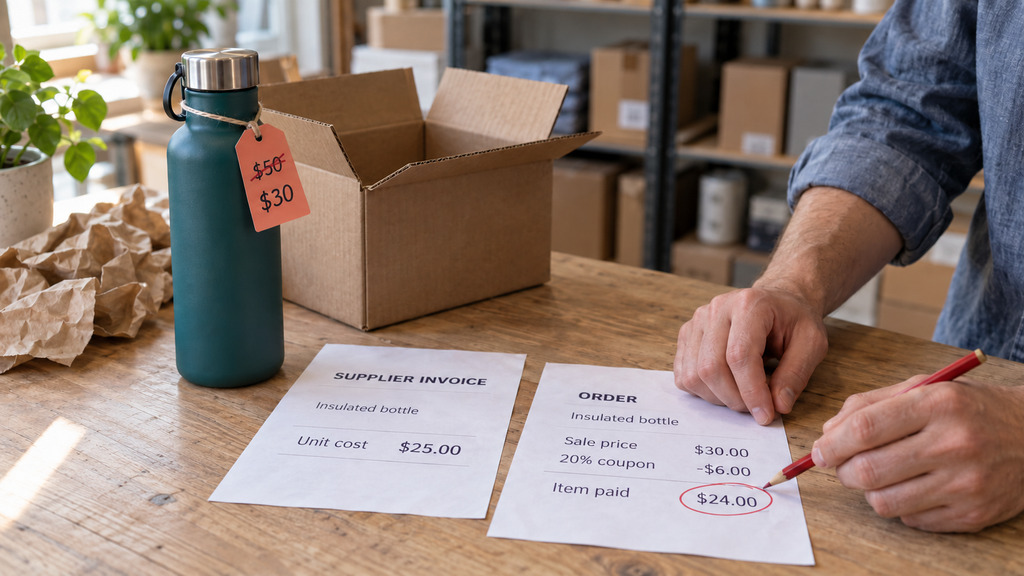
A customer uses a coupon, you pack the order, and another sale appears in WooCommerce. But the amount the customer paid is less than you paid your supplier. The coupon worked, the checkout accepted the order, and you lost money on the product.
To find products you're selling below cost, compare the price customers pay after discounts with your current cost for each product. Then add the fees, packaging and shipping you pay, because a price above the supplier's cost can still leave you losing money. Selling below cost can be a deliberate choice when you're clearing stock or attracting customers. The problem is doing it without realizing it.
Six ways a product can end up selling below cost
- A coupon reduces the price by more than you can afford. A product costs you $24 and lists at $30. A 25% code reduces the price to $22.50, which is $1.50 below cost, and the checkout accepts it. If the product is already on sale, the same code reduces its price even further. Start by checking codes that apply to sale prices or to products with little profit left after their costs. Our coupon guide explains how codes affect profit.
- You pay more for the product, but charge the same price. Your supplier has changed the price twice since you added the product, or the exchange rate has changed. But you haven't updated the product's cost field. The margin on screen still looks fine because the calculation uses the old cost. Any tool that reads that field will use the old number too, so it can't tell you that the product now sells below cost.
- You keep increasing the discount without checking the cost. Gradually increasing discounts can help you sell slow stock. But if you approve each discount without comparing the new price with the product's cost, the third discount could take the price below cost without you noticing. Set the product's cost as the minimum price for each set of discounts. Our dead stock guide and our clearance guide explain when to make a deliberate decision to sell below that price.
- You pay for shipping, and shipping has become more expensive. You set the product's price to cover a $6 shipping label, but the label now costs $9. The price on the product page hasn't changed, so you earn $3 less per order. Our free shipping threshold guide explains how to calculate what you can afford.
- A bundle discount makes one of the products unprofitable. You chose the discount based on how much profit you make from the main product. But the discount applies to every product in the bundle. Another product may have much less profit to spare, so the same discount takes that product below cost.
- You counted the product cost but left out the other expenses. Payment fees, marketplace commissions and packaging add to what you spend on each sale. You need to cover those expenses as well as the product cost before you make a profit. A product priced $1 above its cost can already be losing money once the payment processor takes its fee.
You don't have to choose a loss-making price for any of these problems to happen. A price or discount can look reasonable when you set it, then become unprofitable after your costs or other discounts change.
Find the affected products this week
Put each product's current selling price and current cost in two columns. Use the price a customer would pay, including any sale price, and check what happens when you apply your most generous active coupon. Mark every product whose price is equal to or below its cost.
Next, check products priced only a little above cost. Add the payment fees, packaging and shipping you pay to the product cost, then compare that total with the selling price. The price needs to cover the total for the sale to break even.
Start with sale items, because an extra coupon or another discount is more likely to take those prices below cost. Then check your oldest products, because you may not have updated their costs for a long time.
If you haven't entered product costs, do that first. Our COGS guide explains how to get started without entering every product at once.
When selling below cost is a deliberate choice
There are two reasons to choose a below-cost price:
- To clear stock that smaller discounts couldn't sell. You're accepting a loss so you can recover some of the money you spent and free the shelf space.
- To attract customers who also buy full-price products. A product sold below cost for that reason is called a loss leader. Measure the full-margin products customers buy alongside it, rather than assuming those extra purchases happen.
For either approach, you need to know what you're losing and why you've chosen to accept that loss. If someone chose the price and can explain the reason, carry on. If nobody can explain it, treat the price as a mistake to fix.
One caution for the deliberate kind: some countries regulate below-cost selling. If you run it as an ongoing strategy, check your local rules.
Keep the same problem from happening again
- Check the cost before approving a promotion. Put the product cost beside the price after the coupon, discount or bundle offer. Don't approve the promotion without comparing those figures.
- Update the cost when a delivery arrives. If you paid a noticeably different price for the products, enter the new cost that day. Otherwise your next price check will still use the old number.
- Recalculate when your other costs change. A carrier price increase, a payment processor's fee change or a change in the exchange rate can affect the price you need to charge to break even. Check the products affected by that change.
- Raise accidental below-cost prices, then check sales. Correct the price and check whether the product still sells as quickly. If sales continue at the same pace, you're keeping more money from each sale without selling fewer units.
How Tendlio helps you find and fix below-cost prices
Tendlio is a WooCommerce plugin that does these checks for you. Checking prices by hand means comparing them with product costs across your catalog. After you correct a price, you still need to check whether the product keeps selling and how much more you earn. You'll need to repeat those checks as prices and costs change. Tendlio's own percentage coupons, such as a cart recovery offer, don't apply to products that are already on sale, so those codes don't lower a sale price any further.
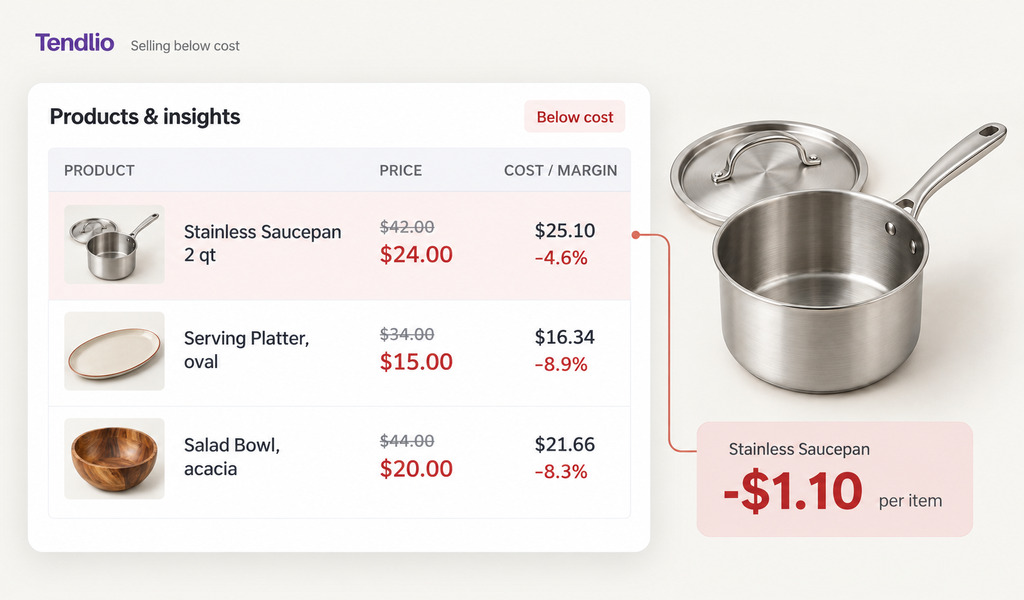
A list of below-cost prices to review
Once you've entered product costs, Tendlio helps you find prices to review during its weekly analysis, or whenever you start an analysis yourself. If some products have no cost yet, the Missing cost filter on Products & insights lists them, and you can type a cost straight into the table. A card on your To do list:
- Counts the flagged products. It shows how many products Tendlio has flagged as below cost, with the products losing the most per month listed first, so you can start with the prices costing you the most money instead of working through the catalog in order.
- Names the price that is the problem. It tells you whether each product's regular price or sale price is below its cost, so you know whether to raise the regular price or reduce the discount.
- Opens the full list. The card's button opens Products & insights with the Below cost filter and the full list of flagged products.
A second card names your top sellers by revenue whose price is a little above the cost you entered, the products this guide says to check next, and opens them under the Underpriced (thin margin) filter.
You decide which prices to change, including whether a clearance price or loss leader should stay as it is.
Check the fix
- The next analysis confirms it. After you correct a price, the next analysis removes the product from the below-cost list.
- Profit recovered. Once the product has sold at the corrected price, the Sales lift page can show "Profit recovered from price fixes". The panel counts the extra margin earned on units sold from the day after the change, which would otherwise have sold at a loss. Tendlio keeps that amount separate from your sales lift figures, so it doesn't count the same result twice.
- Sales at the new price. On Products & insights, add the Sold column under Columns and pick a Custom range that starts on the day you changed the price. Then pick the same number of days before the change, and compare how many units sold at each price.
Together, the sales figure and the recovered profit help you review both parts of the decision: whether the product keeps selling and how much more you keep from those sales.
Want products priced below their cost flagged for you, and the margin you win back counted after you fix them? Start your free trial of Tendlio.
FAQ
How do I find products selling below cost?
Put each product's selling price, after any sale price and your most generous active coupon, beside its current cost. Mark products priced at or below cost, then check those priced only a little above it, because fees can make those sales unprofitable too.
Is it illegal to sell below cost?
In some countries, below-cost retailing is restricted or regulated, particularly as a sustained strategy. An occasional clearance is a different thing from a standing below-cost price. This isn't legal advice. If below-cost pricing is part of your plan, check the rules where you operate.
When does selling below cost make sense?
When you're clearing stock that smaller discounts couldn't sell, or running a loss leader and measuring the full-margin products customers buy alongside it. In both cases, you should know how much you're losing and why you've chosen that price.
Do I need to include shipping and fees in "cost"?
Yes, when you calculate the price you need to break even. Keep the product cost field for what each unit costs you, and check the selling price against that cost plus payment processing, marketplace commissions, packaging and any shipping you pay. Our profit and loss guide explains where those other expenses belong.